How to Create Hundreds of Trackable QR Codes From a CSV
On this page
To create many QR codes at once, put one name and one link per row in a CSV file, paste or upload it on the bulk page, and download the finished codes as a ZIP of PNG images:
name,url
Store 06 - window decal,https://example.com/stores/06
Store 07 - window decal,https://example.com/stores/07
name = the code's name · url = its link. Each row becomes its own dynamic code with its own short link and scan statistics, so you can later see which store, product or flyer each scan came from.
This tutorial uses the bulk page of QR Maker AI, which comes with Pro and is included in Business. It also covers the Business options for larger or repeating jobs: your own short-link domain and the REST API.
Facts checked on 22 October 2026.
Step 1: Prepare two columns
The bulk page reads the first two columns of each line: a name, then a URL. Any further columns are ignored, so an export with extra columns still works.
name,url
Store 06 - window decal,https://example.com/stores/06
Store 07 - window decal,https://example.com/stores/07
Store 08 - window decal,https://example.com/stores/08
The rules, all checked as you paste:
- One code per line. The CSV format puts each record "on a separate line", and the first line may be an optional header (RFC 4180). A
name,urlheader is skipped automatically. - Commas inside names need quotes. RFC 4180 says fields containing commas "should be enclosed in double-quotes", and the bulk page follows that:
"Store 06, window"is read as one name. Without the quotes, the comma starts a new column and the rest of the name is lost. - Links must start with
http://orhttps://and be no longer than 2,048 characters. Rows that fail are dropped from the count of valid rows. - Name codes for sorting. "Store 06 - window decal" sorts and filters better than "Window".
If you want Google Analytics 4 to report each code separately, put different UTM parameters in each row's URL; Analytics shows their values in the Traffic acquisition report (Google Analytics Help). Tracking QR code placements shows a naming pattern.
Step 2: Save the sheet as CSV
- Google Sheets: click File, then Download, then Comma Separated Values (.csv), the same menu path Google gives in its own help (Google Contacts Help).
- Excel: use File and Save As, then choose CSV (comma delimited). Microsoft notes that the CSV formats save "only the active sheet" (Microsoft Support), so put the two columns on the sheet you have open.
You can also skip the file and paste the rows straight into the text box, as long as they are separated by commas. The bulk page does not read tab-separated rows, so check the separator before you paste.
Step 3: Paste or upload on the bulk page
Sign in, open Bulk in the dashboard menu, and paste the rows or click Upload .csv. The page counts the rows it can use, for example "5 valid rows detected".
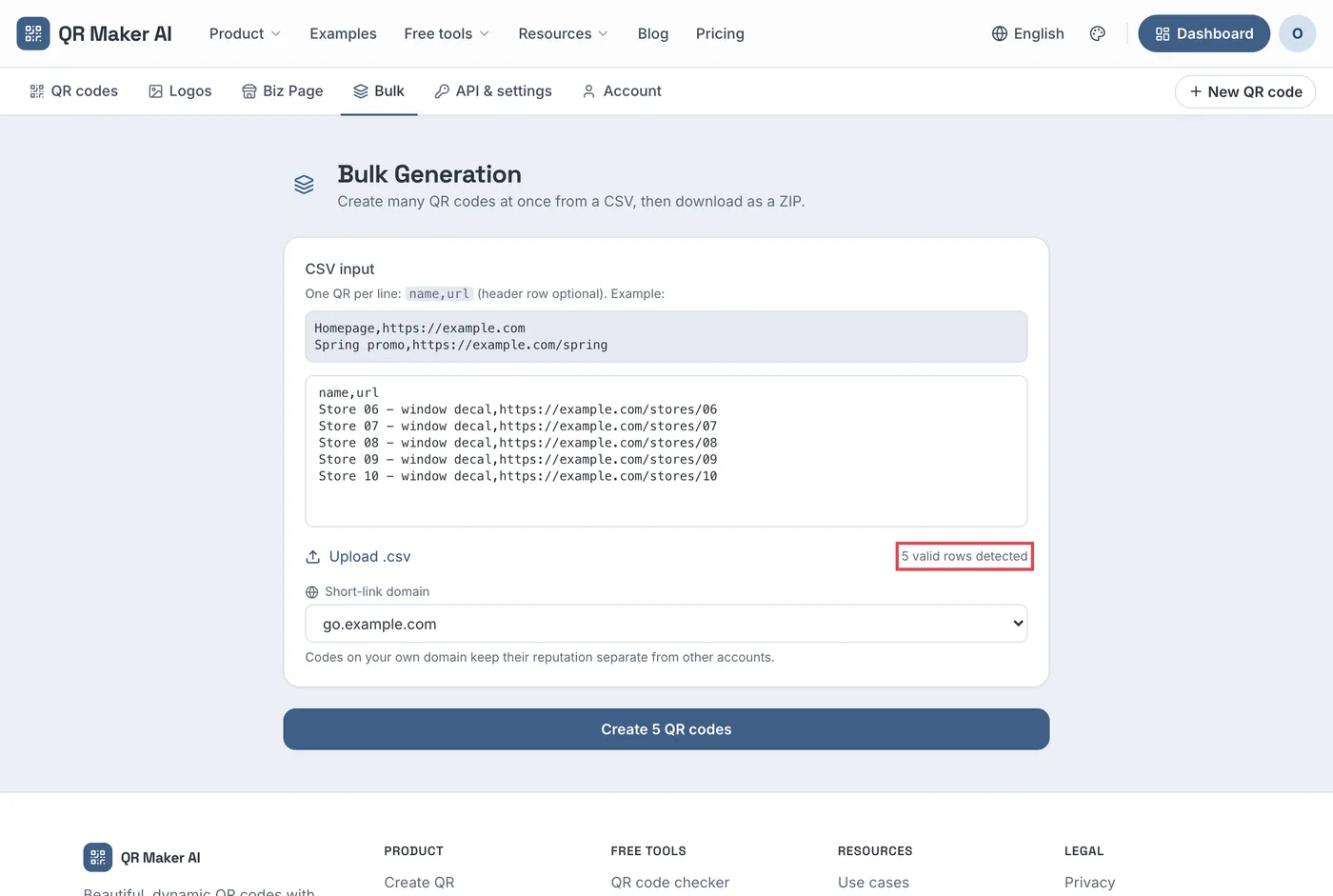
Screenshot from a demo account with sample data.
On Business, the Short-link domain box lets you put the whole batch on your own subdomain, such as go.yourbrand.com. The custom domain tutorial explains the one-time setup.
Step 4: Create the codes and download the ZIP
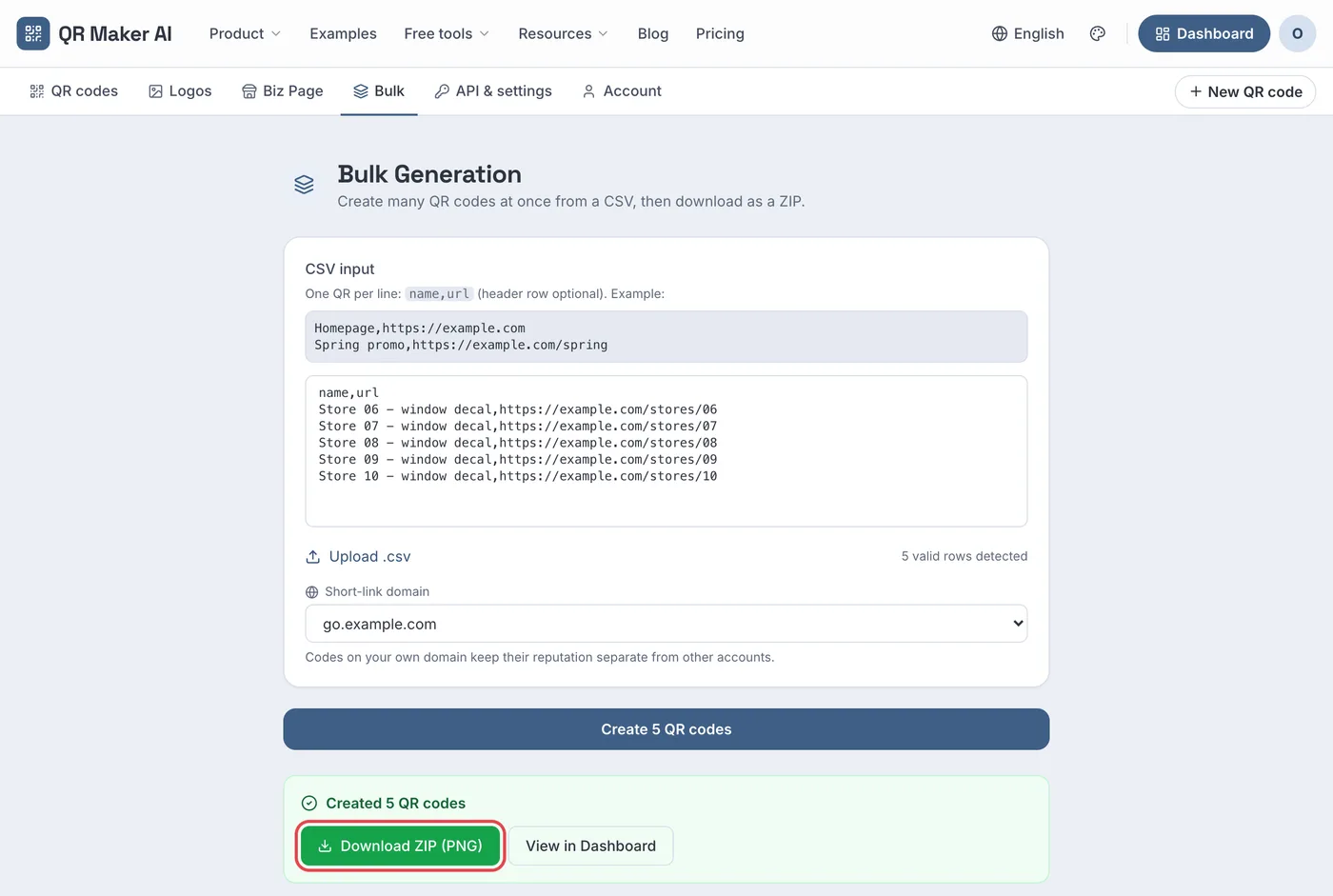
Click Create N QR codes. The codes are created one after another with a progress counter. If a row fails, for example because its destination points to another URL shortener or a raw IP address, the page lists the row number, the link and the reason, and carries on with the rest.
When the run finishes, click Download ZIP (PNG). Each image is 1,024 pixels wide, uses the plain default style and is named after the code with its short ID appended, so two codes with the same name cannot overwrite each other. Download the ZIP before leaving the page; afterwards, each code can still be downloaded from its row in My QR Codes.
How large to print them depends on the scanning distance. DENSO WAVE's QRcode.com says that "the larger the module is, the more stable and easier to read" a code becomes (DENSO WAVE). The QR code size calculator turns a distance into a minimum print width.
Step 5: Organize and track the batch
Bulk codes appear in My QR Codes like any other. To keep a batch together, open each code, go to Settings and give it a Folder name; the dashboard then shows a chip for that folder.
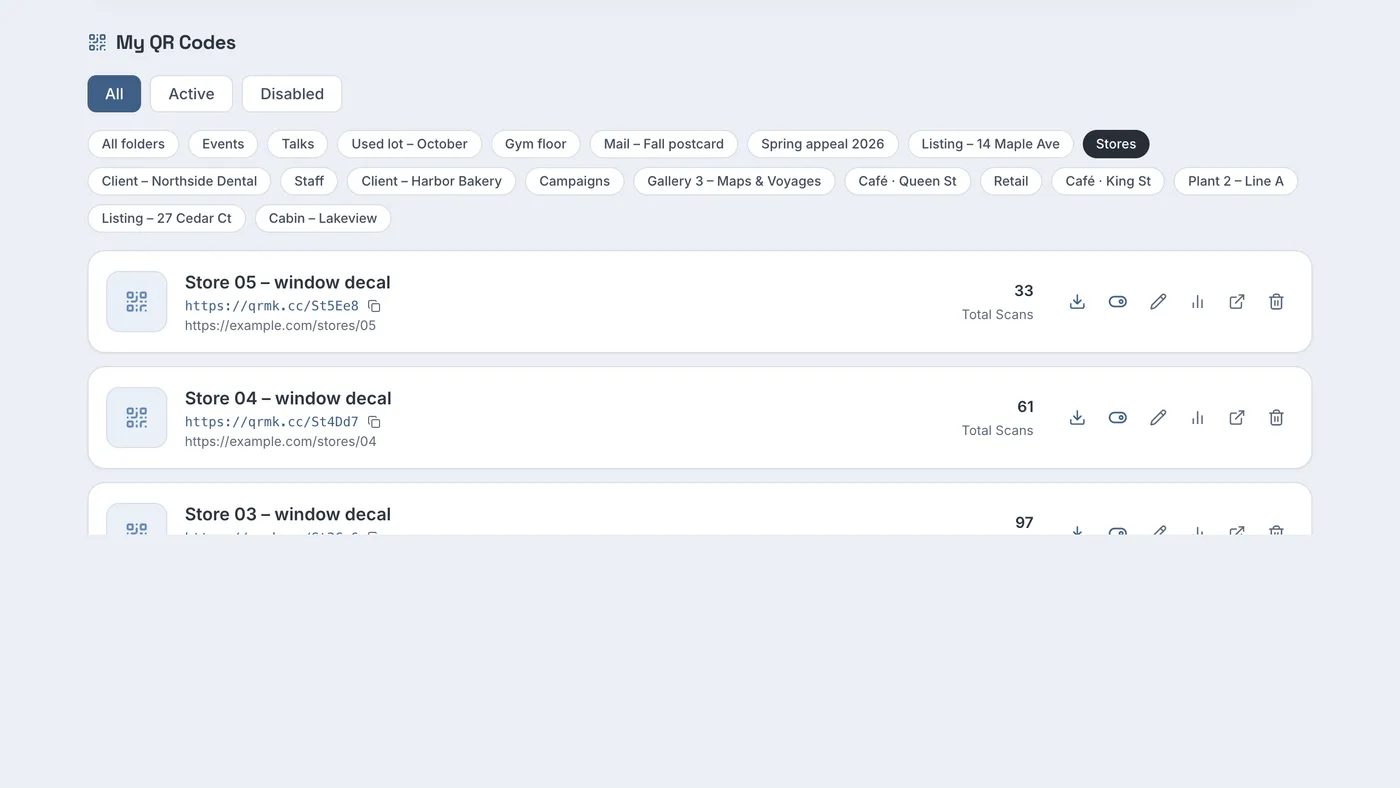
The Export code list button at the top of My QR Codes downloads the whole list on every plan: name, short link, destination, status, total scans and creation date. Bring that file into the same spreadsheet with File and Import in Google Sheets (Google Docs Editors Help), and matching it to your original rows by name gives you scans per store or product in one place. Business can also export individual scans, one row per scan with time, country, device and placement; see exporting QR code scan data.
When to use the API instead
The bulk page suits a one-off batch. If codes have to be created every week, or straight from a product database, the Business REST API is the better tool:
POST /v1/qrcodes/batchcreates up to 100 codes per request.- An
external_idsuch as a SKU makes each create safe to repeat: sending the same row twice returns the existing code. - Codes created through the API use the account's saved default style automatically, so the whole batch can match your brand rather than the plain bulk-page style.
- Adding
?include=svgto the request returns an SVG image of each code in the same response, so there is nothing to download separately.
Creating QR codes with a REST API and creating QR codes from a Google Sheet walk through both routes. The API allows 120 requests a minute and 50,000 successful calls a month on Business; in a batch, each code created counts as one call.
Which plan you need
| Free | Pro | Business | |
|---|---|---|---|
| Bulk page (CSV to codes + ZIP) | No | Yes | Yes |
| Active dynamic codes | 3 | Unlimited | Unlimited |
| Batch on your own short-link domain | No | No | Yes |
| REST API with batch create | No | No | Yes |
| Export of individual scans | No | No | Yes |
Pro costs $3.99 a month or $34.99 a year; Business costs $29 a month or $279 a year, with a 14-day free trial on the monthly plan for new customers (card required). Prices as of October 2026; see the pricing page.
FAQ
Is there a limit on rows?
The bulk page has no fixed row limit. Codes are created one at a time, so a very large file simply takes longer. The API accepts up to 100 codes per request.
Can I set folders in the CSV?
Not on the bulk page, which reads only a name and a URL. The API accepts a folder field per code.
Can I change all the destinations later?
Yes, one code at a time in the editor, or from a script through the Business API, with one PATCH request per code by ID or external_id. Printed codes keep working either way.
What format are the images in the ZIP?
PNG, 1,024 pixels wide, one file per code. Pro and Business can download SVG or PDF versions of each code from the editor.
Sources
- IETF — RFC 4180: Common Format and MIME Type for Comma-Separated Values (CSV) Files. Published October 2005. Accessed 22 October 2026.
- Google — URL builders: Collect campaign data with custom URLs, Analytics Help. Undated. Accessed 22 October 2026.
- Google — Import your contacts into Google Contacts, Contacts Help. Undated. Accessed 22 October 2026.
- Microsoft — Save a workbook to text format (.txt or .csv). Undated. Accessed 22 October 2026.
- DENSO WAVE — Point for setting the module size, QRcode.com. Undated. Accessed 22 October 2026.
- Google — Import data sets & spreadsheets, Google Docs Editors Help. Undated. Accessed 22 October 2026.