How to Create a Dynamic QR Code You Can Edit After Printing
A dynamic QR code stores a short link instead of your final web address. When someone scans it, the short link looks up the current destination and sends the phone there with an HTTP 302 redirect, which the HTTP standard, RFC 9110, describes as a resource that "resides temporarily under a different URI". Because the printed pattern only holds the short link, you can change the destination later and keep the same print.
This tutorial walks through the whole process in QR Maker AI: entering the link, styling it without breaking it, saving, testing a printed proof and editing the destination afterwards.
Facts checked on 22 October 2026.

Before you start
You need three things:
- A destination URL that starts with
http://orhttps://and is no longer than 2,048 characters. - A free account with a verified email address. Static codes need no account. Saving a dynamic code does, because the short link has to belong to someone.
- A link type. Only website links can be dynamic. Wi-Fi, contact card (vCard), phone, SMS, email, location, plain text and app-store codes write their content straight into the pattern, so they cannot be edited after printing. If you are unsure which kind you need, read Dynamic vs Static QR Codes first.
The free plan includes three active dynamic codes and 500 tracked scans a month across your account. If you go over 500 in a month, your codes keep redirecting; only the counting pauses until the next month.
Step 1: Paste the destination into the designer
Open the QR code designer, keep Website URL selected and paste your link into Destination URL. The label above the preview should read "Saves as a dynamic code · trackable, editable". That label is your confirmation that saving will create a short link rather than a static image.
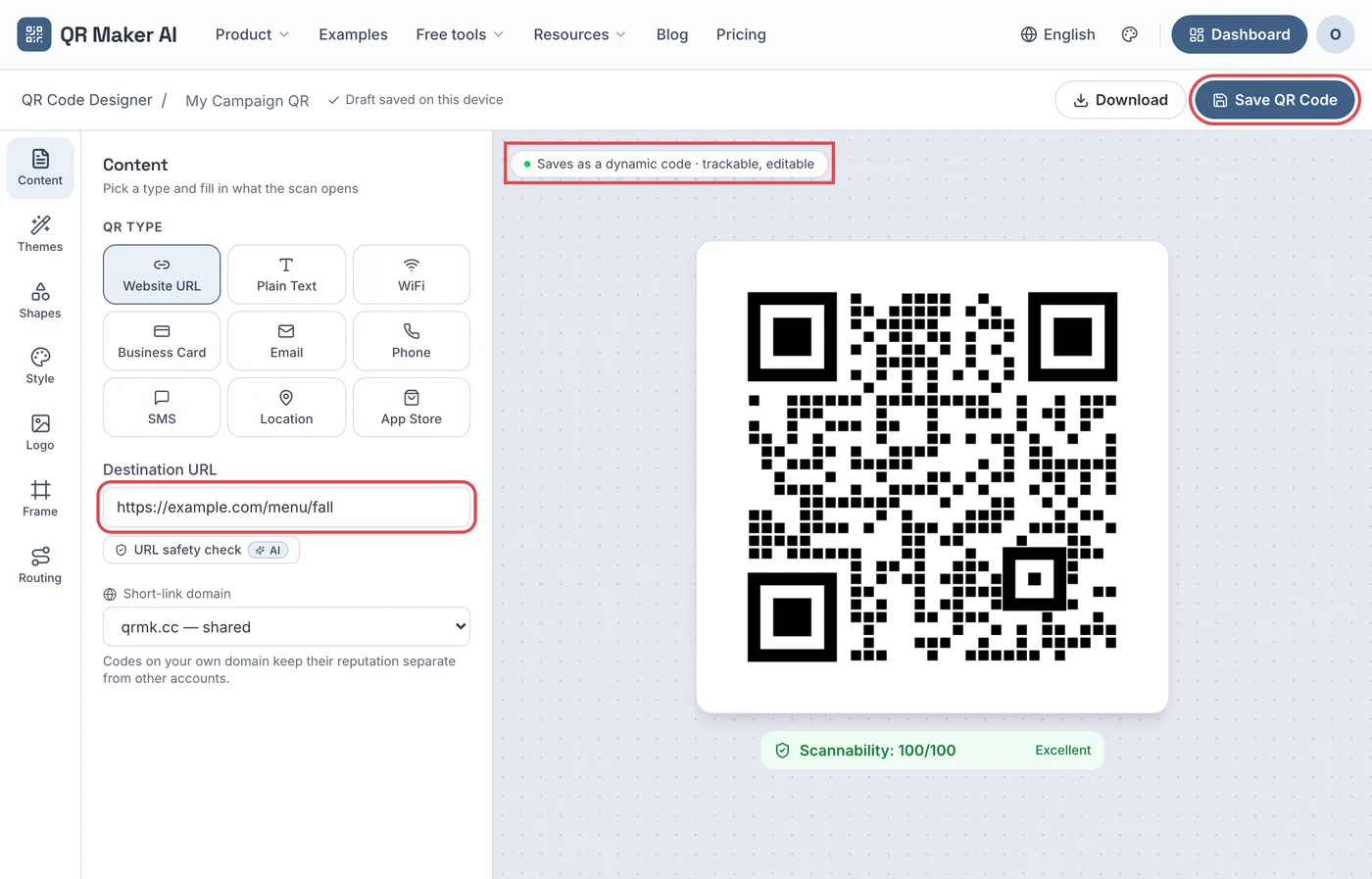
Screenshot from a demo account. All numbers and links in this article's screenshots are sample data.
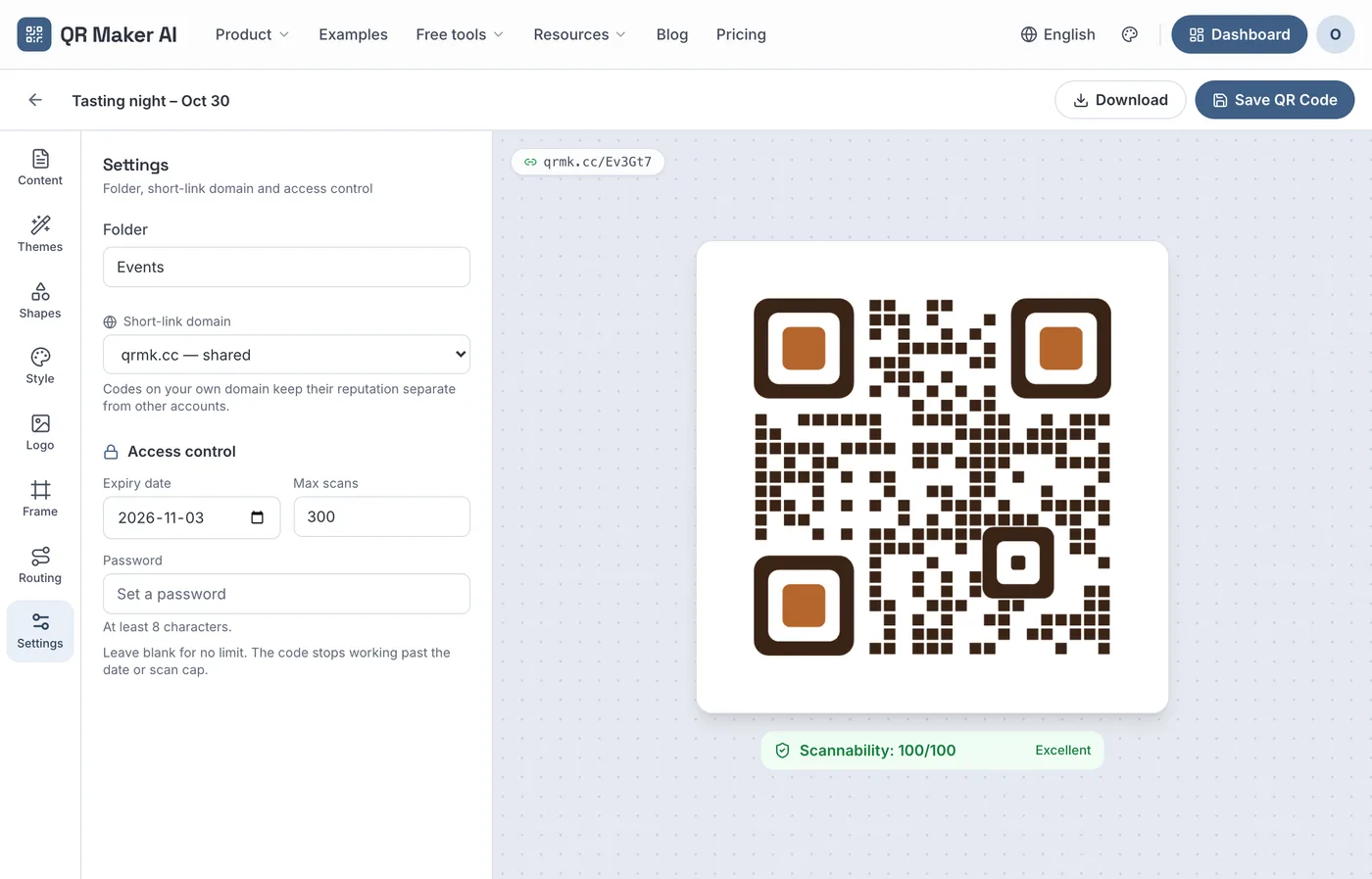
On Free and Pro, every code uses the shared qrmk.cc short-link domain. The Short-link domain box in the screenshot appears only on Business accounts with an active subdomain of their own, such as go.yourbrand.com; the custom domain tutorial covers that setup.
Step 2: Style it, then read the Scannability score
Colors, dot shapes, corner styles, frames, presets and a logo are free on every plan. Two published rules keep a styled code readable:
- Dark modules on a light background. DENSO WAVE's FAQ says that scanners "use red light" and that a red code on a white background cannot be read; its basic advice is to print "black on a white background" (DENSO WAVE FAQ). Strong contrast between a dark color and a light one is the safe version of that advice.
- Leave the margin alone. The QR code standard asks for a blank quiet zone four modules wide on every side (ISO/IEC 18004:2006, section 8.1). Do not place text or artwork in that border.
Under the preview, the Scannability score decodes your current design in the browser at several sizes and checks contrast, logo size and background. In the next screenshot, light orange centers in the three corner squares made the full-size decode fail: 12 out of 100, "This code isn't decoding". Switching the centers to the same dark navy as the dots brought the same design back to 100.

If you add a logo, the designer raises error correction automatically: to level Q for a logo up to 10% of the code width and to H for a logo up to 22%. QR code error correction levels explains what those letters mean.
A high score proves that your artwork decodes on screen. It does not prove that paper, ink, lighting or a curved surface will cooperate, which is why Step 4 exists.
Step 3: Save and copy the short link
Click Save QR Code. The code now appears under My QR Codes with its short link (for example https://qrmk.cc/Ev3Gt7) and its current destination underneath.
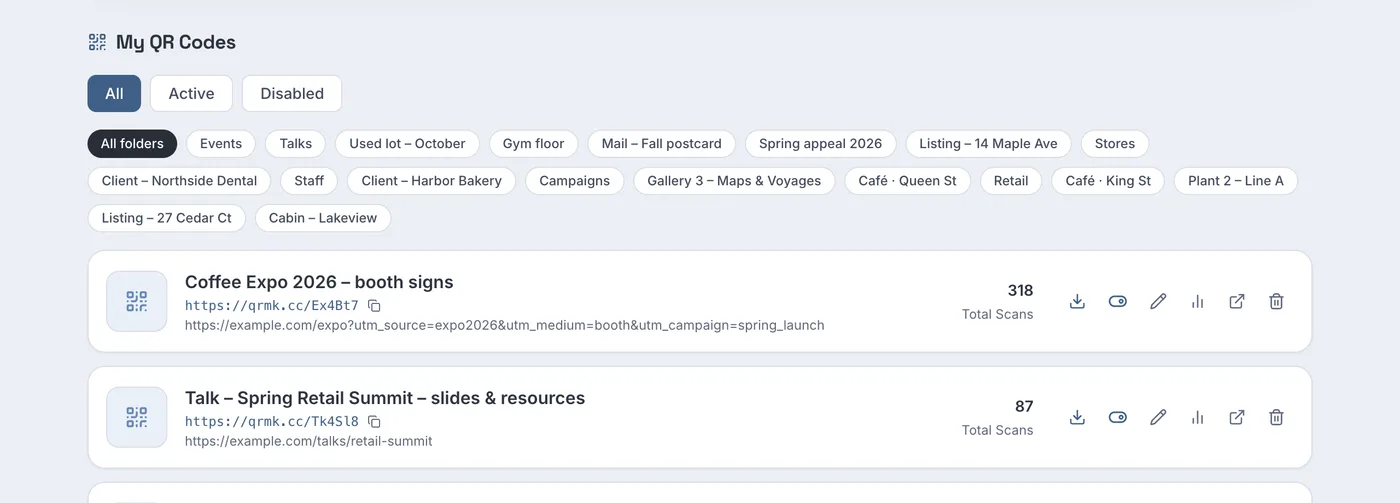
The download button on the same row saves a 1,024-pixel PNG. For other sizes and formats, open the code and use Download: PNG at 512, 1024 or 2048 pixels is free, and SVG and PDF downloads come with Pro. The SVG is a vector file that scales to any size; the PDF contains a 1,024-pixel image rather than vector paths.
Step 4: Test a printed proof on two phones
Print one copy at the final size on the final material. Then scan it:
- with an iPhone, using the Camera app or the Code Scanner in Control Center (Apple Support);
- with an Android phone; on a Pixel, use the Camera app or Google Lens (Pixel Phone Help).
Check that each phone lands on the page you expect. If you are unsure about the size, the free QR code size calculator gives a minimum print width for your scanning distance, and the QR code checker tests a final artwork file before it goes to the printer.
Step 5: Change the destination later
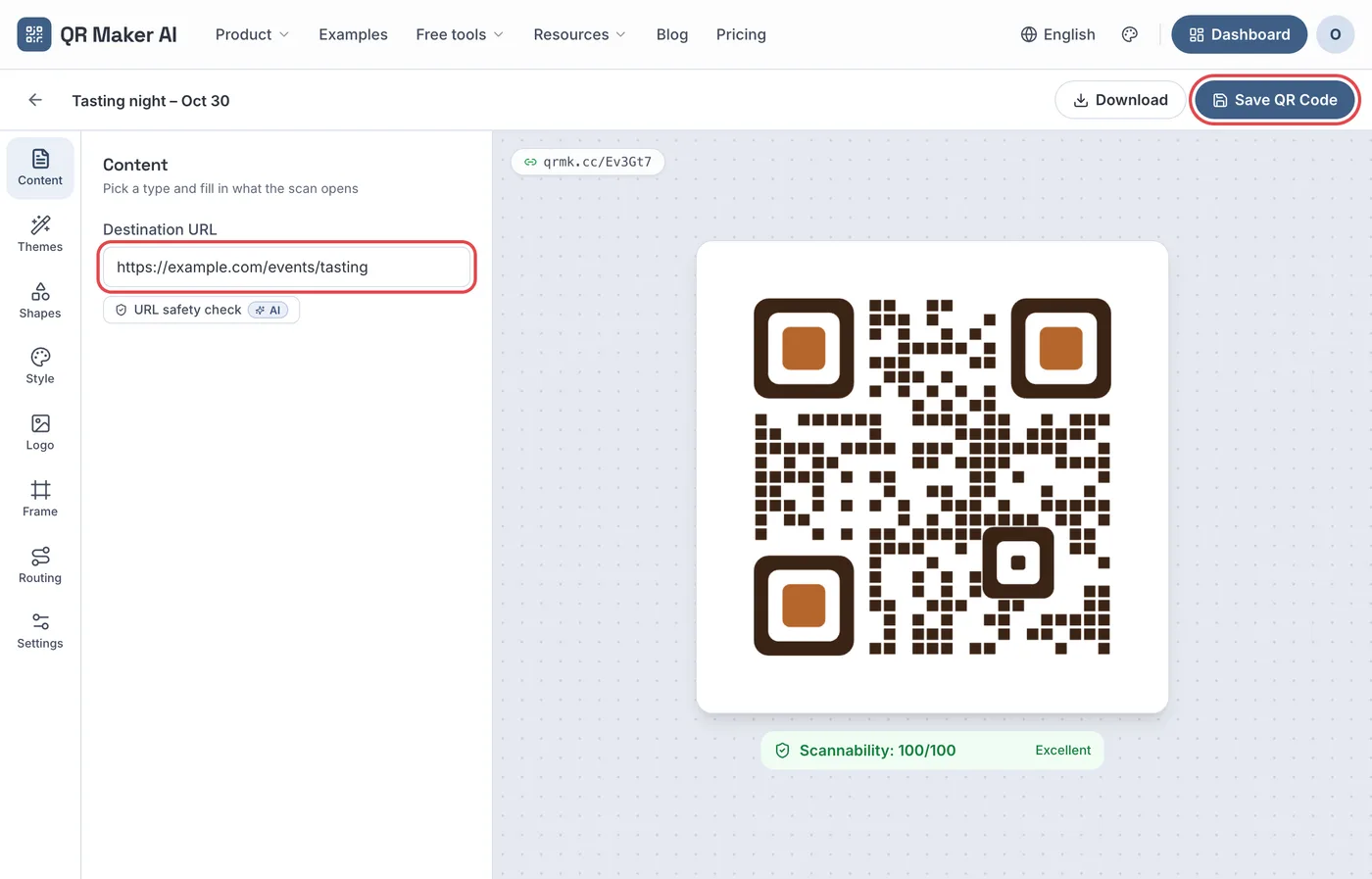
Open the code from your list, select Content, replace the Destination URL and click Save QR Code. The next scan of every printed copy goes to the new address. The redirect service reads the destination at scan time, so there is nothing to republish.
Two things do not change after printing:
- The pattern. Changing colors or dots in the editor changes future downloads, not the ink already on paper.
- The short-link domain of a printed code. On Business, the Settings section lets you move a code to another domain, but copies printed with the old link stop working. Only do that before printing.
The same Settings section holds the folder name and, on Pro and Business, three access controls: an expiry date, a maximum number of scans and a password of at least eight characters. When a code passes its date or its scan cap, scanners see a "Link Not Found" page instead of your destination.
Which plan you need
Prices as of October 2026; the pricing page is the current reference.
| What you want to do | Free | Pro | Business |
|---|---|---|---|
| Active dynamic codes | 3 | Unlimited | Unlimited |
| Tracked scans per month | 500 | Unlimited | Unlimited |
| Edit the destination after printing | Yes | Yes | Yes |
| Expiry date, scan cap, password | No | Yes | Yes |
| Smart routing, bulk creation from CSV | No | Yes | Yes |
| SVG and PDF downloads | No | Yes | Yes |
| Your own short-link domain, team access, REST API, scan export | No | No | Yes |
| Price | $0 | $3.99 a month or $34.99 a year | $29 a month or $279 a year |
The monthly Business plan starts with a 14-day free trial for new customers; a card is required.
The domain question deserves a minute of thought before a large print run. Whoever runs the short-link domain decides how long printed links keep working. Google, for example, announced that links from its own URL shortener would stop responding, noting that more than 99% of them had no activity in the previous month, and later narrowed the shutdown to inactive links only (Google Developers Blog). On Business, your codes can carry a subdomain you own, so the name printed on your packaging stays yours.
FAQ
Do dynamic QR codes stop working after a while?
Not on a timer. A dynamic code stops when you delete or disable it, when it passes an expiry date or scan cap you set, when it is disabled for breaking the terms of service, or when the service behind the short link stops answering. Do QR codes expire? covers each case.
Can I turn a static QR code into a dynamic one?
No. A static code's content is part of the printed pattern. Create a new dynamic code and replace the printed copies.
Does changing the destination change how the printed code looks?
No. The printed pattern holds the same short link before and after the change, so the image stays identical.
What happens after 500 scans on the free plan?
Your codes keep redirecting. Scans beyond 500 in a calendar month (UTC) are not recorded; counting starts again when the next month begins.
Sources
- IETF — RFC 9110: HTTP Semantics, section 15.4.3 "302 Found". Published June 2022. Accessed 22 October 2026.
- DENSO WAVE — FAQ, QRcode.com. Undated. Accessed 22 October 2026.
- ISO/IEC — ISO/IEC 18004:2006, QR Code 2005 bar code symbology specification (public copy at law.resource.org). Published 1 September 2006. Accessed 22 October 2026.
- Apple — Scan a QR code with your iPhone or iPad. Published 14 September 2026. Accessed 22 October 2026.
- Google — Scan QR codes with your Pixel phone. Undated. Accessed 22 October 2026.
- Google — Google URL Shortener links will no longer be available (updated). Published 18 July 2024, updated 1 August 2025. Accessed 22 October 2026.