QR Codes for Vacation Rentals: Wi-Fi, Guidebook, Checkout
On this page
A vacation rental needs three kinds of QR code, all inside the property: a Wi-Fi code by the router so guests join without typing, a code on the welcome book that opens a guidebook page you can update, and codes for things that change, such as the local guide or the checkout list. Door codes and lockbox codes never go on a printed QR code.
This guide builds that set in QR Maker AI, mostly on the free plan, and shows what the scan data tells you about your guests.
Facts checked on 26 October 2026.
Step 1: a Wi-Fi code for a guest network
Put guests on a guest network, not your own. The FTC recommends it because "Having a separate login means fewer people have your primary Wi-Fi network password", and because malware on a guest's phone "won't get onto your primary network and your devices" (FTC). The same FTC page says to use WPA3 Personal or WPA2 Personal encryption.
Then make the code:
- In the generator, choose WiFi under QR type.
- Type the Network Name (SSID) and Password, and leave Encryption on WPA/WPA2 unless your router says otherwise.
- Click Download. A Wi-Fi code is a static code: the network name and password are written into it, and nothing needs an account.
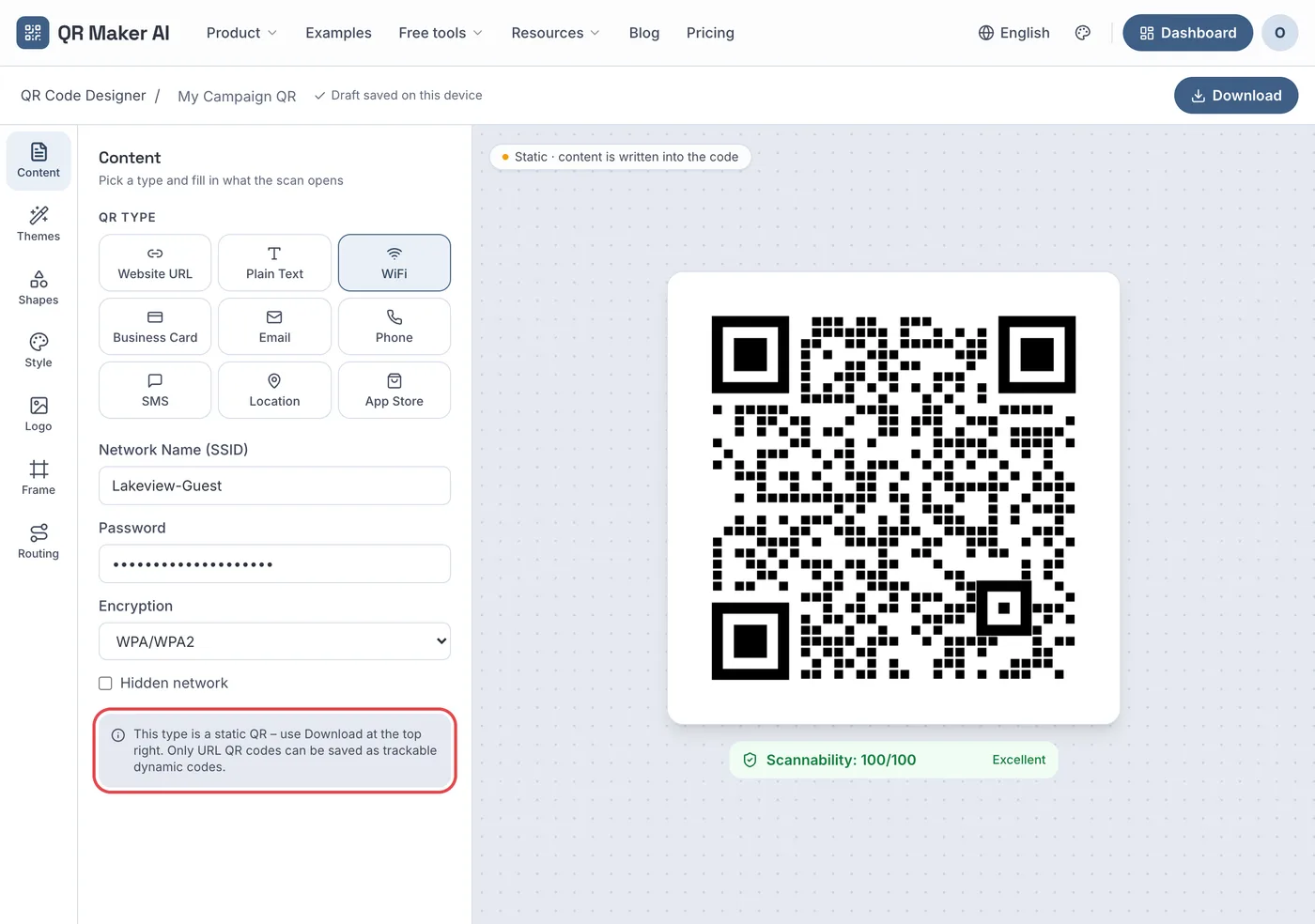
Screenshot from a demo account with sample data.
Guests point the camera at it and join. Android phones also make these codes themselves: Google's help page describes choosing a network and tapping Share, after which "Your device will give you a QR code" for another device to scan (Android Help). The Wi-Fi QR code guide covers the exact format.
Because the password is inside the code, changing the guest password means printing a new code. If you change it between stays, rely on the guidebook page in Step 2 instead, where guests can copy it.
Step 2: a guidebook page guests can open from the welcome book
Airbnb's own advice for a house manual is to "Include the wifi password first", give step-by-step instructions for appliances and electronics, and consider a laminated sign with Wi-Fi login instructions somewhere in the space (Airbnb Resource Centre). A Biz Page does the same job on the guest's phone, and you can edit it without reprinting:
- Open Biz Page and click New Biz Page. Name it after the property and add a tagline such as "Your guidebook for this stay".
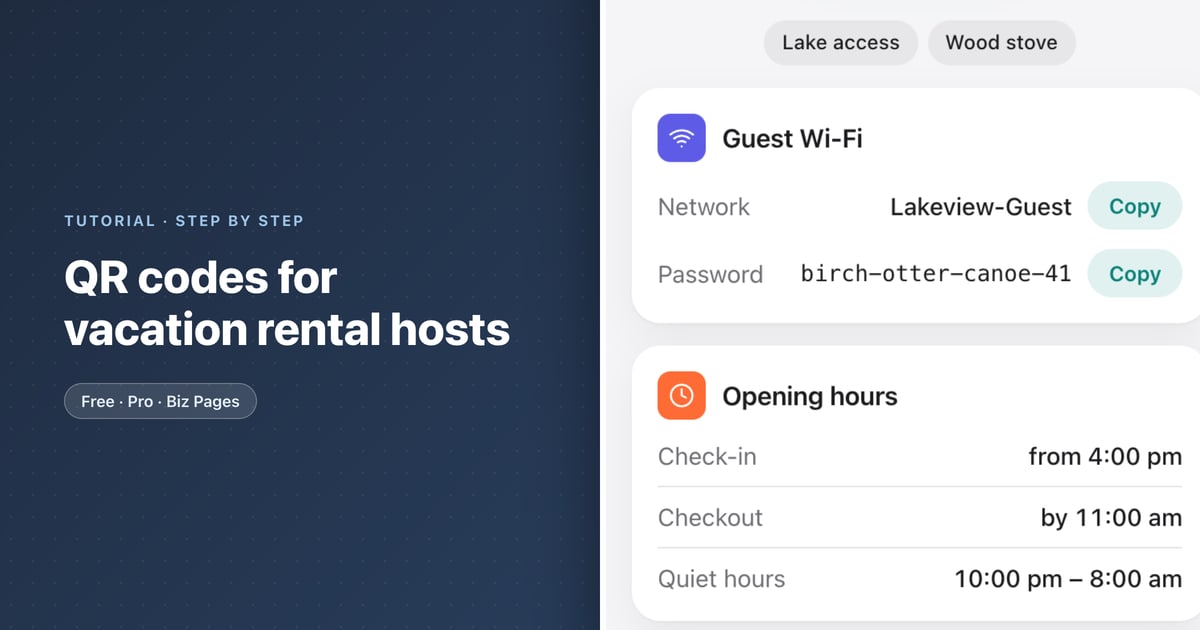
- Add a WiFi card with the guest network and password. Guests see both with a Copy button.
- Add Opening hours and use the rows for check-in time, checkout time and quiet hours.
- Add a Text block for house rules, a Custom link to your local guide (set it as the main button), Directions and a Call button.
- Save, click Generate QR and download the code for the welcome book or fridge.
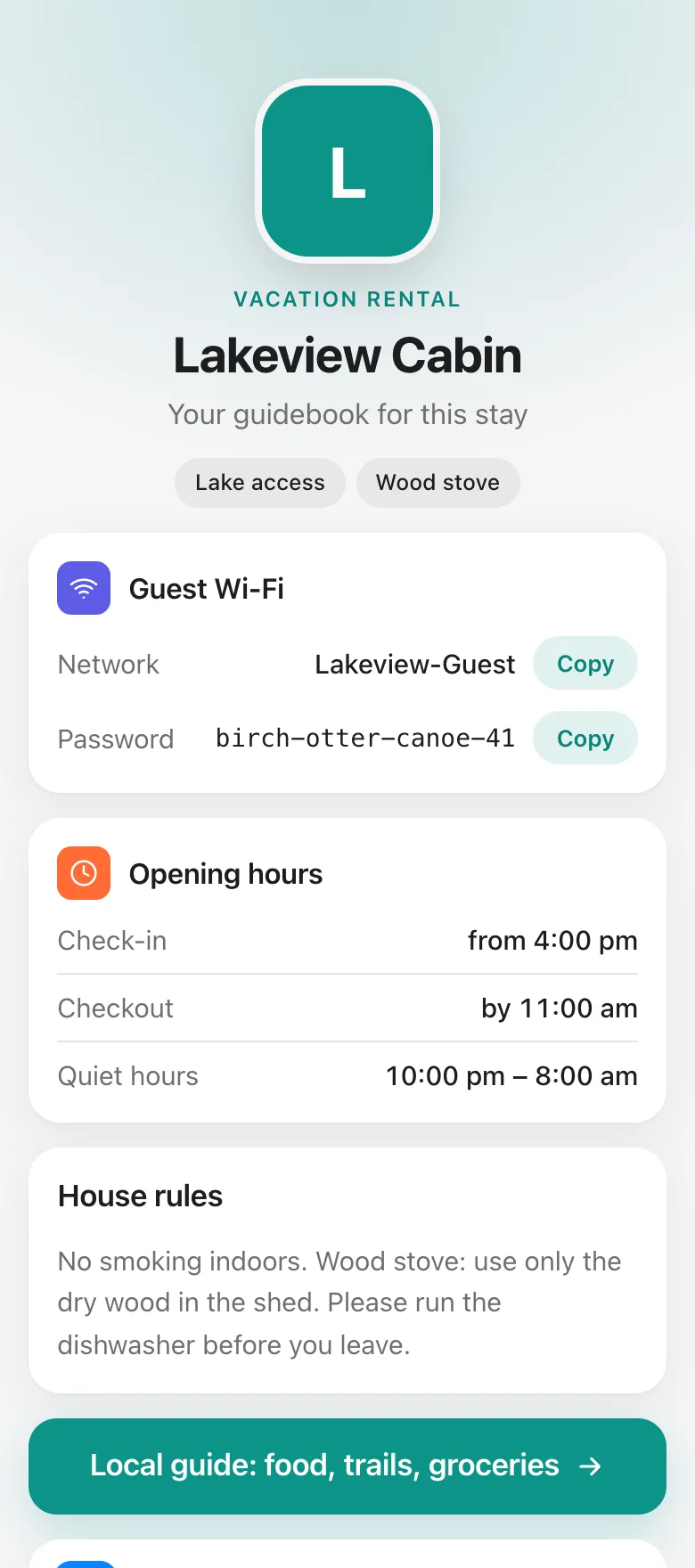
The free plan includes one Biz Page with up to four blocks and a small footer, which is enough for Wi-Fi, times, rules and one link; Directions and a Call button need more blocks. The Biz add-on or the Business plan allows up to 30 blocks, removes the footer and adds click statistics.
A Biz Page is a public web page: anyone who has its link can read it, including the Wi-Fi password. That is fine for a guest network and one more reason to keep guests off your own.
Step 3: dynamic codes for things that change
Restaurant tips, trail conditions and the checkout list change more often than the welcome book. Put those on your own web pages or documents and use a dynamic code, which holds a short link you can repoint at any time:
- Create a code for each page, for example "Lakeview cabin – local guide (fridge)" and "Lakeview cabin – checkout checklist (back of door)".
- In each code's Settings, set a Folder named after the property. With several properties, the dashboard then filters by property.
- Edit the destination whenever the page moves. The printed code stays the same.
Each code's analytics page then shows what guests use. The Languages panel is the most useful one for a host: it lists the preferred language of the phones that scanned.
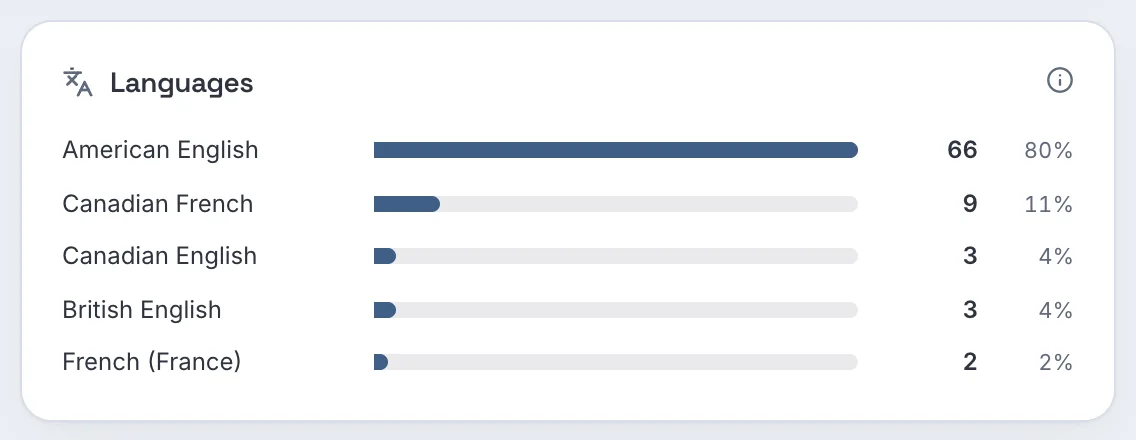
In the sample data, Canadian French is the second language after American English. That is a good reason to translate the checkout list. The country and region panels are less telling here: they come from the network the phone used, and guests scanning inside your rental usually show up in your own state.
Never put entry codes on a printed QR code
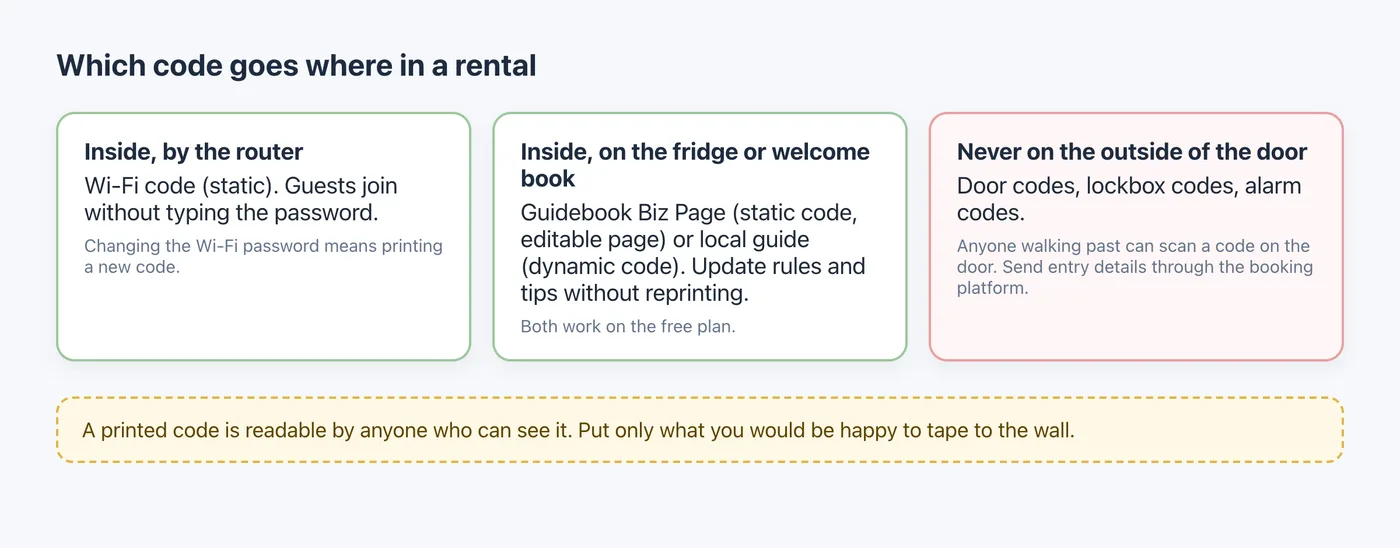
Anyone who can see a printed code can scan it, including people walking past a door or window. Keep door, lockbox and alarm codes in the booking platform's messages, which go to the people on that reservation rather than to anyone walking past.
Airbnb's pages give slightly different timings for when those messages arrive. Its guest help article says guests usually get check-in details "about 48 hours (local time) prior to your check-in" (Airbnb Help), while its host article on self check-in says guests receive instructions "24 to 48 hours before check-in" and that "it’s important to give each booking guest a unique access code" (Airbnb Resource Centre). Either way, the platform, not a sticker, is the place for the code.
A password-protected QR code is not a substitute. The password page stops casual scans, but the password itself still has to reach the guest through a private channel.
Which plan you need
| What you want | Free | Pro | Business |
|---|---|---|---|
| Wi-Fi QR code | Yes, no account needed | Yes | Yes |
| Guidebook Biz Page | 1 page, up to 4 blocks, footer | Same (Biz add-on: $2.99 a month for 10 pages, 30 blocks) | Included, up to 10 pages |
| Dynamic codes for guides and checklists | 3 active codes, 500 tracked scans a month | Unlimited | Unlimited |
| Folders and analytics, including languages | Yes | Yes | Yes |
| Price as of October 2026 | $0 | $3.99 a month or $34.99 a year | $29 a month or $279 a year |
One property fits the free plan. Hosts with several properties usually need Pro for unlimited dynamic codes and the Biz add-on for a guidebook per property; Business includes both. Plans are compared on the pricing page, and the hotel use case page has more in-room ideas.
FAQ
Can guests join my Wi-Fi by scanning a QR code?
Yes. A Wi-Fi QR code contains the network name, password and encryption type, and a phone that scans it can join the network; Google's Android help describes joining this way.
Do I have to reprint the Wi-Fi code when I change the password?
Yes, because the password is written into the code. A guidebook page with a Wi-Fi card can be updated instead, and guests copy the new password from it.
Is it safe to put the door code behind a QR code?
No. Anyone who sees the printed code can scan it. Send entry codes through the booking platform, a different code for each booking.
How do I know where my guests come from?
Look at the Languages panel of a code's analytics, which shows the preferred browser language of the phones that scanned. Location panels are based on the network the phone used, so they mostly show your rental's area.
Sources
- Federal Trade Commission — How To Secure Your Home Wi-Fi Network. Consumer Advice, December 2022. Accessed 25 October 2026.
- Google — Connect to Wi-Fi networks on your Android device. Android Help, undated. Accessed 25 October 2026.
- Airbnb — Write a house manual to share info about your space. Resource Centre, published 18 November 2020, updated 7 November 2021. Accessed 25 October 2026.
- Airbnb — Where to find your check-in instructions. Help Centre, undated. Accessed 25 October 2026.
- Airbnb — How to provide self check-in for smooth arrivals. Resource Centre, 31 August 2026. Accessed 25 October 2026.